Importing from a recipe website
Updated 2026-09-13
- On the Recipes tab, tap + → Web Import.
- A small browser opens inside ReciLore. Go to the recipe — type or paste the address in the bar, use the recently used row, or tap one of the popular recipe sites and navigate to the dish you want.
- If the site needs you to sign in or dismiss a cookie banner, do that in the browser first.
- Tap the floating Import Recipe button.
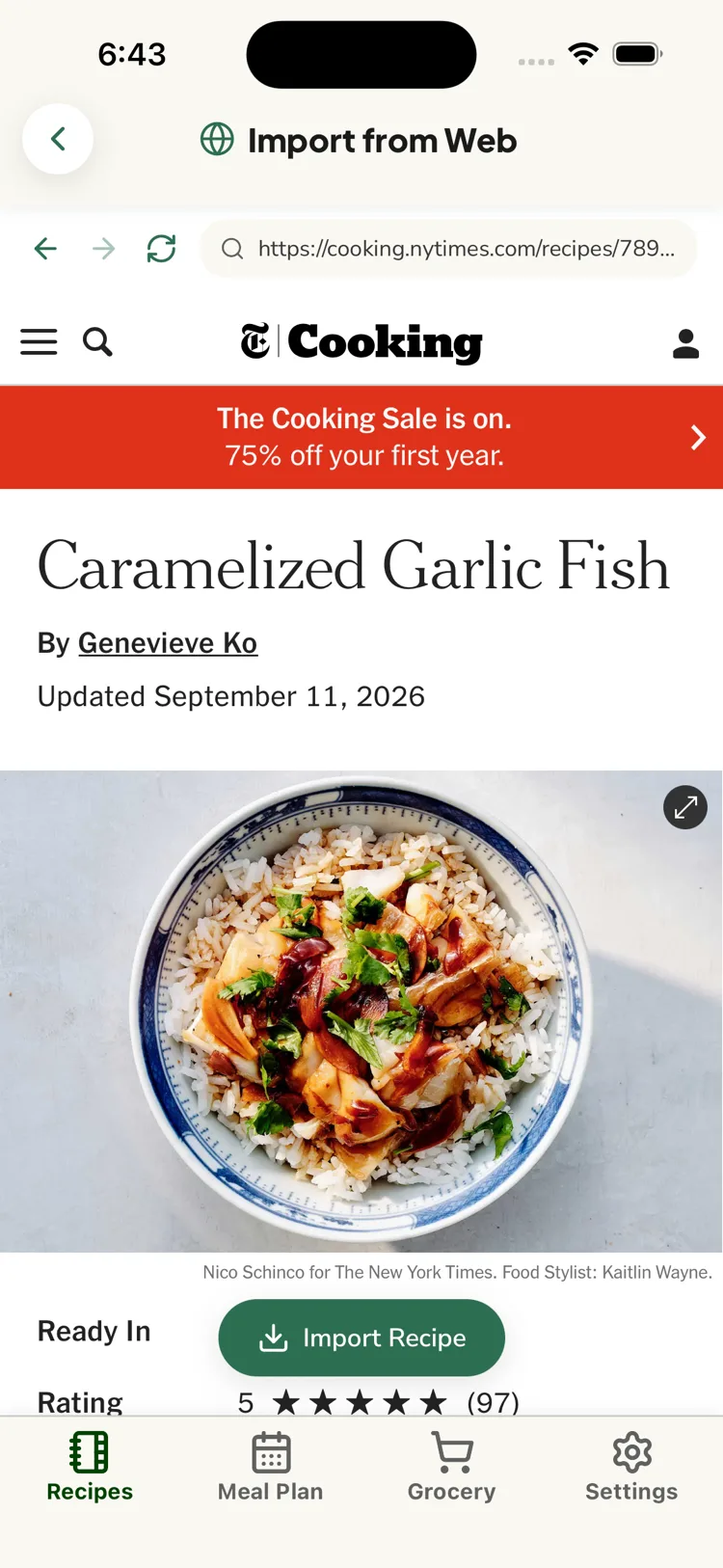
ReciLore reads the page's recipe data, then falls back to reading the visible text if needed, and adds the recipe to your library.
Why it stays on the browser afterward
After a successful import you stay in the browser (not on the new recipe) and see a "Recipe imported" message with Edit recipe / Go to library shortcuts. This is deliberate — it lets you import several recipes in a row from the same site.
If it doesn't work
You'll see an inline error and a Retry button. Common ones and what to do are in A recipe import failed. The reliable fallback is to copy the recipe text and use Quick Paste.
Already have this recipe?
If you import a page you've imported before, ReciLore asks first and can update the existing recipe in place, keeping your pins, loves, tried mark, and tags — see Updating a recipe you already imported.
Questions this answers
- How do I import a recipe from a website?
- Where do I paste the recipe link?
- Why did it stay on the browser after importing?
- Do I need to log in to the recipe site?
Still need help?
Email us at [email protected] and we'll get back to you.